The TypeScript Node in BeeGraphy is a scripting node that lets users write TypeScript code directly inside the BeeGraphy editor. It acts as a bridge between visual node-based workflows and text-based programming.
Normally, in BeeGraphy, you build things by connecting nodes - one node makes a line, another offsets it, another rotates it, and so on.
The TypeScript Node is different: it is like a blank workspace where you can code instructions like:
Do this step repeatedly
If this condition is true, do one thing; otherwise, do another
Create something using a formula instead of manual steps
So instead of manually building long chains of nodes, you can explain the logic once in code, and BeeGraphy follows it. All the complex geometry gets compacted in one single programming node.
The TypeScript Node helps when:
A visual node setup becomes too crowded or confusing
You need repetition (like creating many points, lines, or shapes in a pattern)
You want precise control using math or rules
You want BeeGraphy to react intelligently to inputs
For example:
Generating points in a mathematical sequence
Automatically creating geometry based on conditions
Writing your own small “tools” inside BeeGraphy
Managing complex data cleanly without dozens of nodes
TypeScript is like JavaScript with safety checks. It helps catch mistakes early and makes scripts easier to understand, especially as they grow bigger. Even beginners benefit because it:
Makes inputs and outputs clearer
Reduces errors
Keeps complex logic organized
The TypeScript Node lets you tell BeeGraphy how to build precise, programmable, and highly customizable design logic.
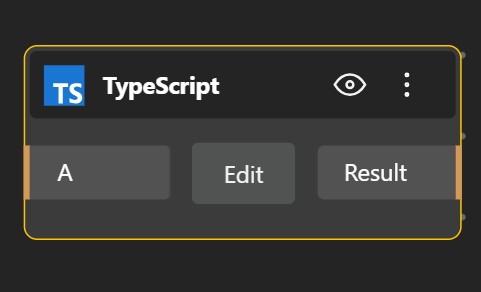
Add the TypeScript Node
Open your Model in BeeGraphy
Search for Scripting Node (JS/TS) or TypeScript Node or Drop it onto the canvas from the Menu bar.
You’ll see an option to edit. Click Edit to open the code editor. (Default code is written, you can delete it when you start using)
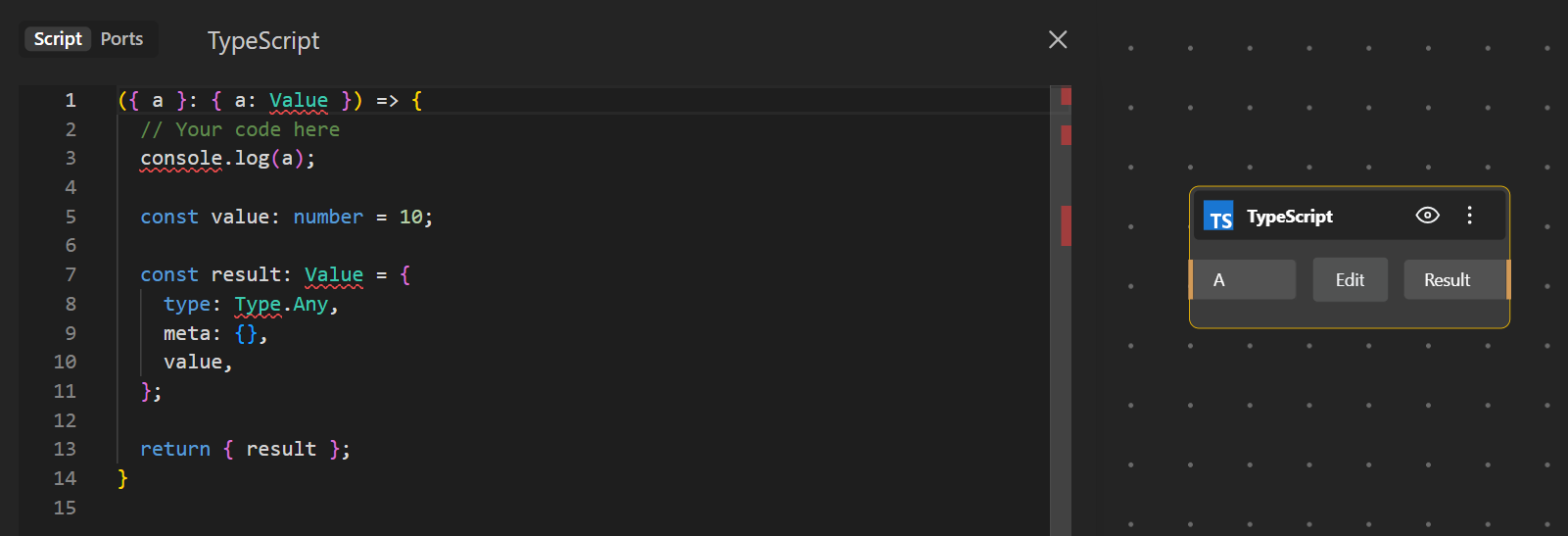
The script is where the actual logic is written. It defines how the input variables are processed, combined, or transformed.
Inside the script, you can:
Use the input variables
Apply mathematical rules or conditions
Generate or modify geometry
Organize complex behavior in a compact form
The script does not directly interact with the canvas. It only works with the data provided through input ports and prepares the result for output.
The input port is basically where all the variables or parameters that you mention in the script can be added. Moreover, any value you want to control from outside the code (numbers, geometry, booleans, lists) must be defined as an input port. Once added, these inputs can be connected from the canvas and used directly inside the TypeScript code.
The port name must exactly match the variable name used in the script
The label is only the name shown on the canvas
The type defines what kind of data the variable accepts (number, curve, solid, etc.) By default, the type is Any
This allows the script to stay reusable while the parameters remain adjustable visually.
The output port defines what the script sends back to the canvas.
Any value, geometry, or list created in the script must be exposed through an output port to be usable by other nodes.
Output ports act as return values
Their type should match what the script produces
They allow the scripted result to connect seamlessly to other BeeGraphy nodes. By default, the type is Any
Without an output port, the script’s result on the output window but cannot be used further,
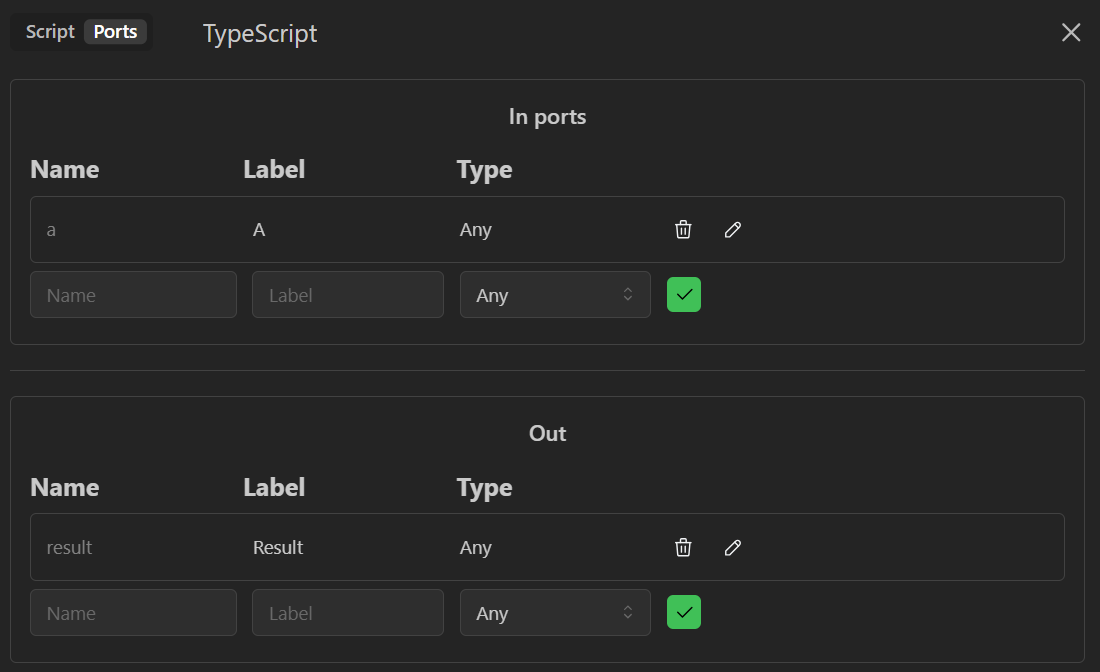
Input Ports provide variables → Script processes them → Output Ports return results
This structure keeps the workflow clean, parametric, and scalable, allowing complex logic to live inside the script while staying fully integrated with BeeGraphy’s visual system.