Teams in BeeGraphy provide a collaborative space where you can invite multiple members to work together on a project. Each team is exclusive, allowing you to create separate groups with different people, without sharing the same models across teams. This ensures privacy, focus, and flexibility in managing your projects and collaborators.
Log in to BeeGraphy Workspace
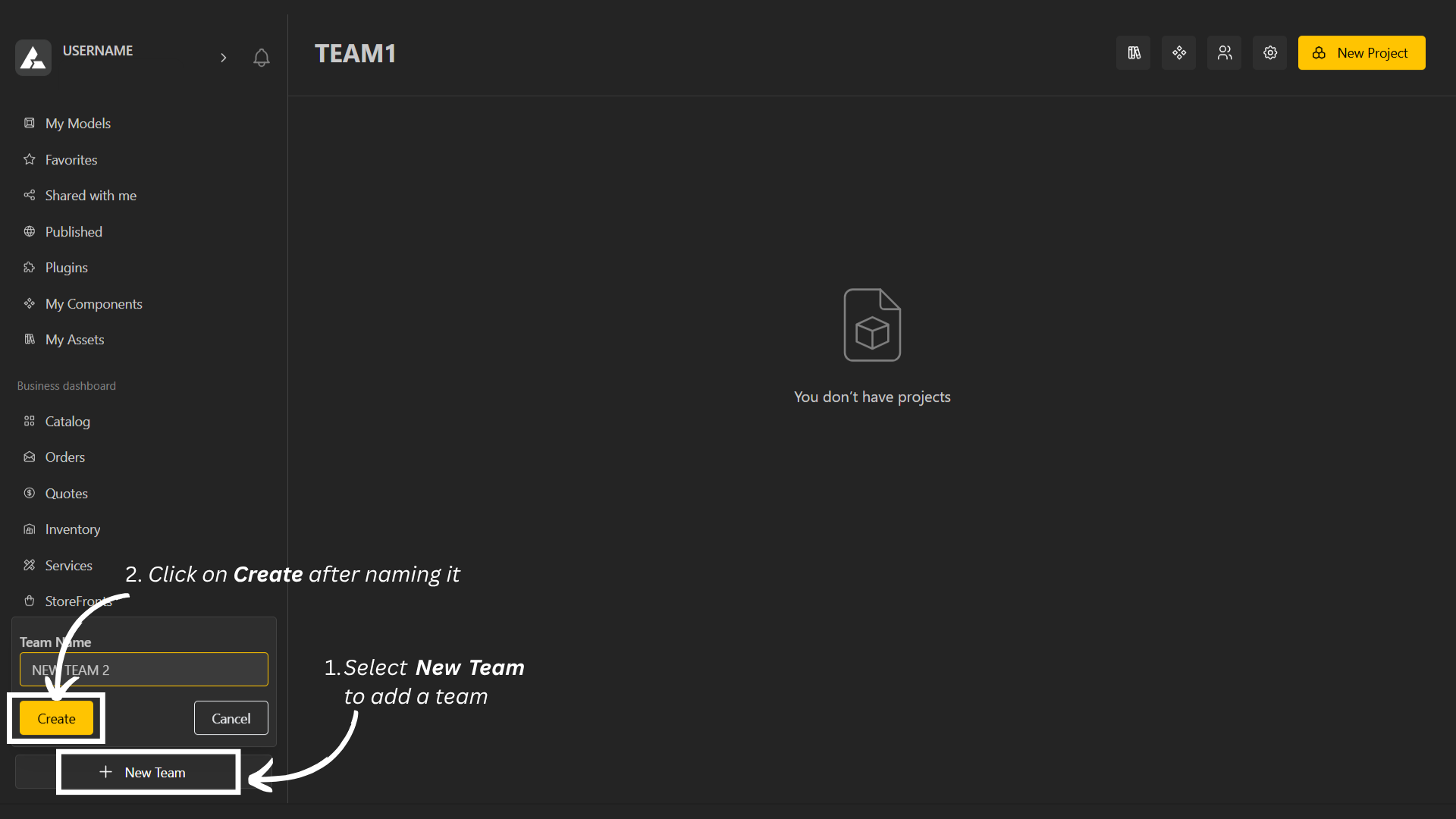
In the left-hand column, scroll down and select New Team to create a team.
Enter the team name, then click Create to complete the setup.
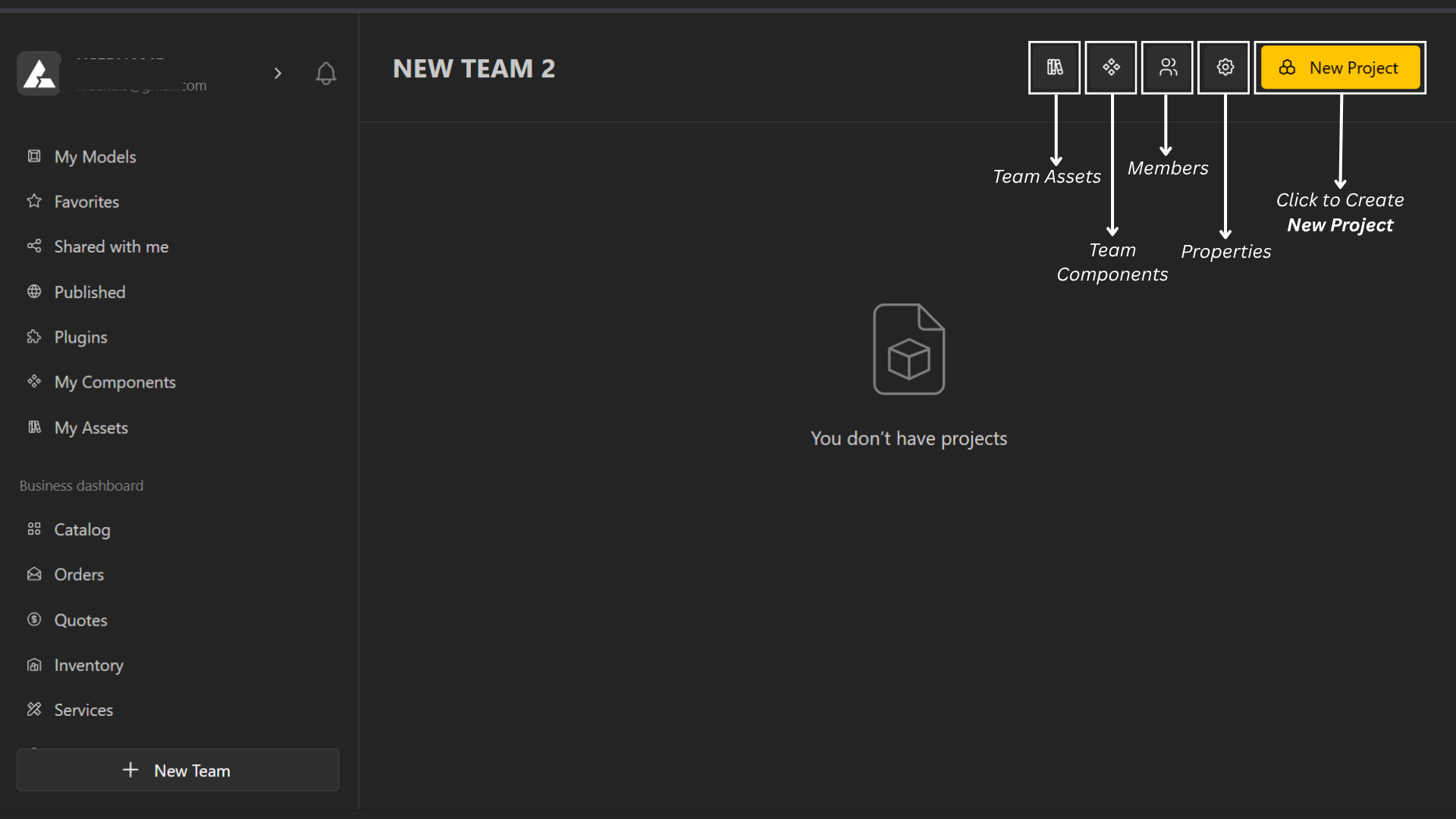
Select the team you want to manage.
The top menu includes the following options:
Team Assets – View and manage all assets shared within the team.
Team Components – Access and organize reusable components.
Team Members – Manage team members and their roles.
Team Settings – Configure team preferences and permissions.
Create New Team Project – Start a new project under the selected team.
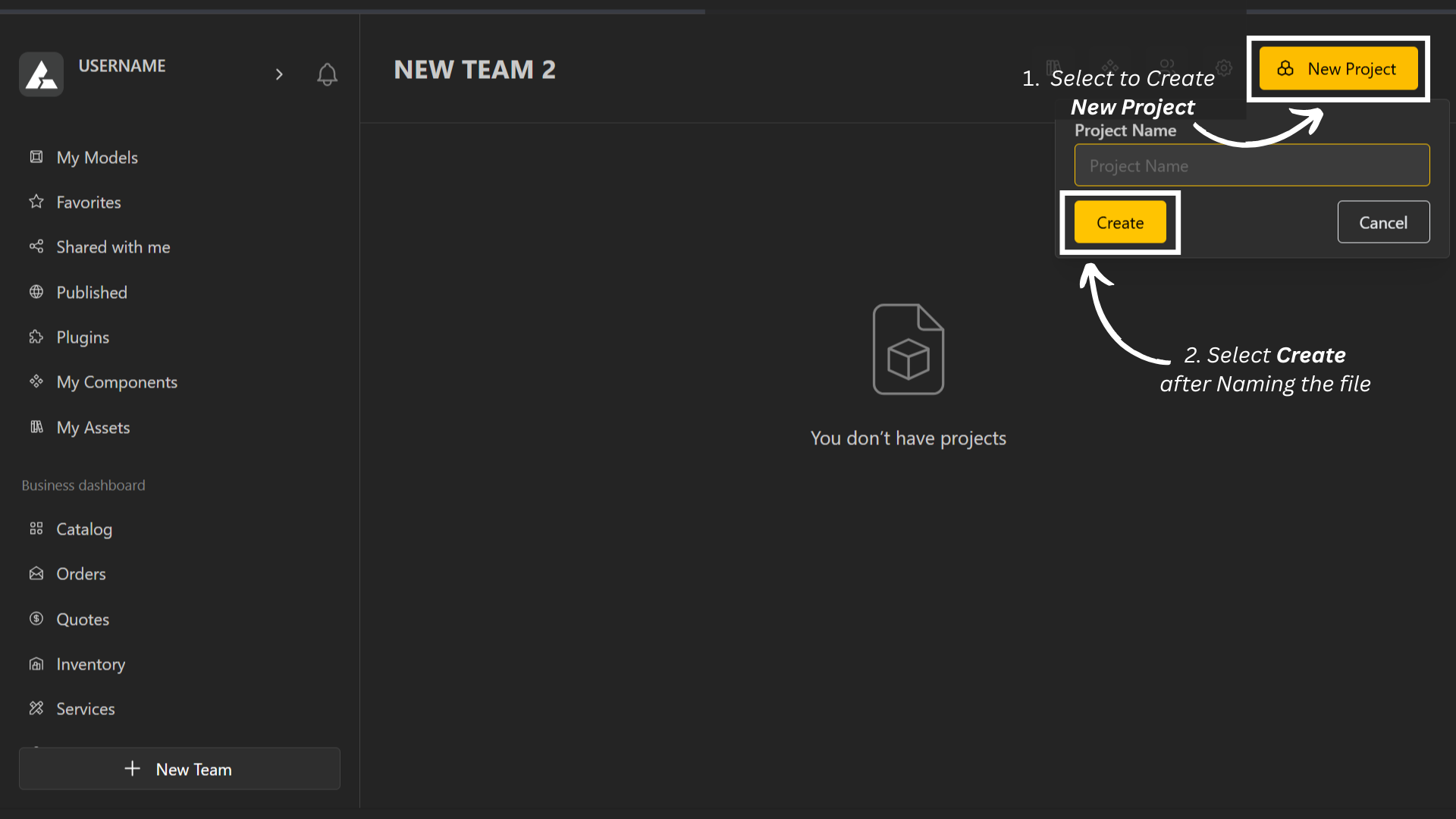
Select New Project and enter your file name.
Click Create to complete the creation of your new project.
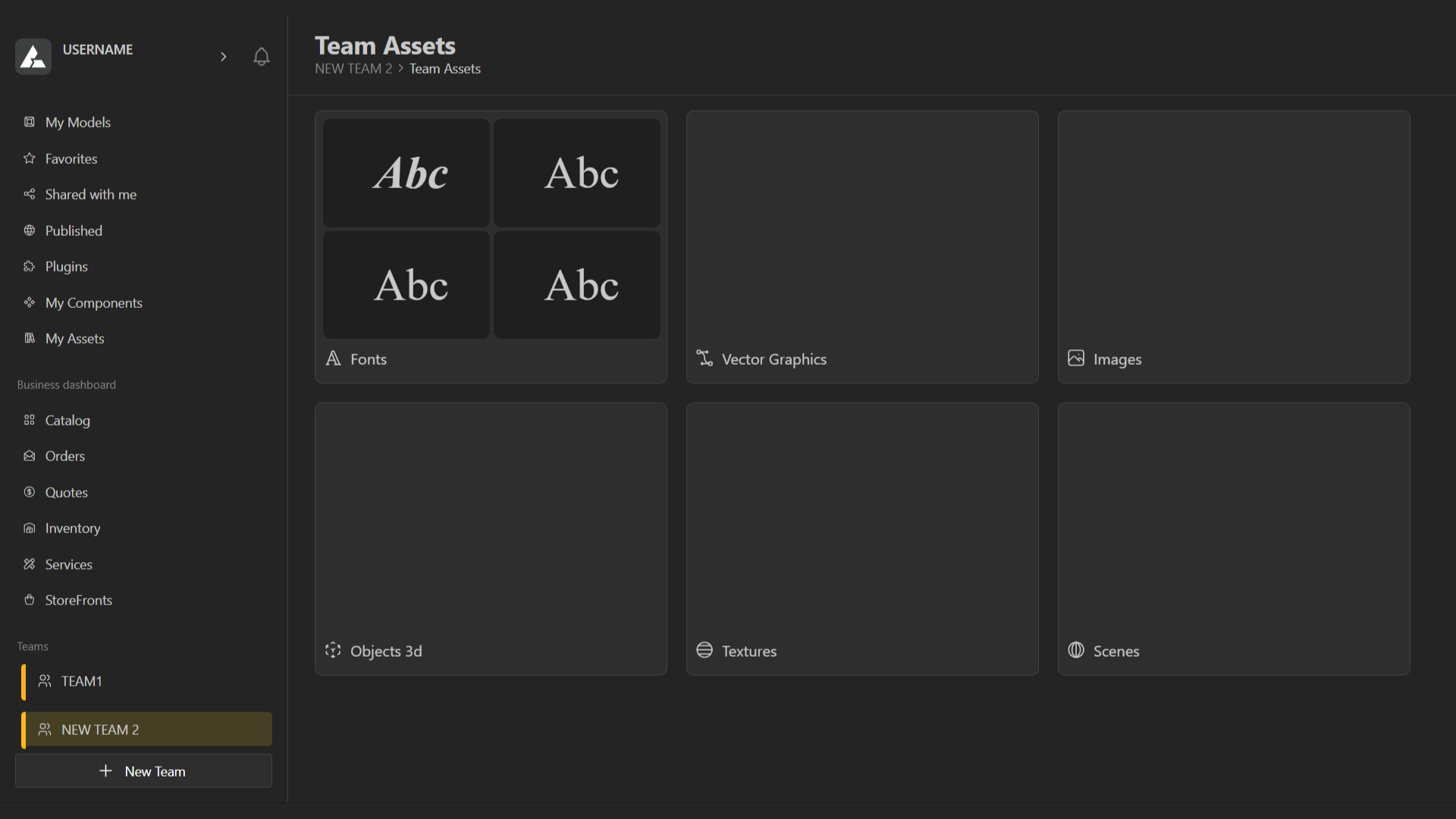
Assets in Beegraphy are the building blocks for your projects. They include Fonts, Vector Graphics, Images, that you can reuse across models to streamline your workflow and maintain consistency.
Components are reusable parts of a model that can be easily added, modified, or combined to build complex designs efficiently. They help maintain consistency and speed up the modeling process.
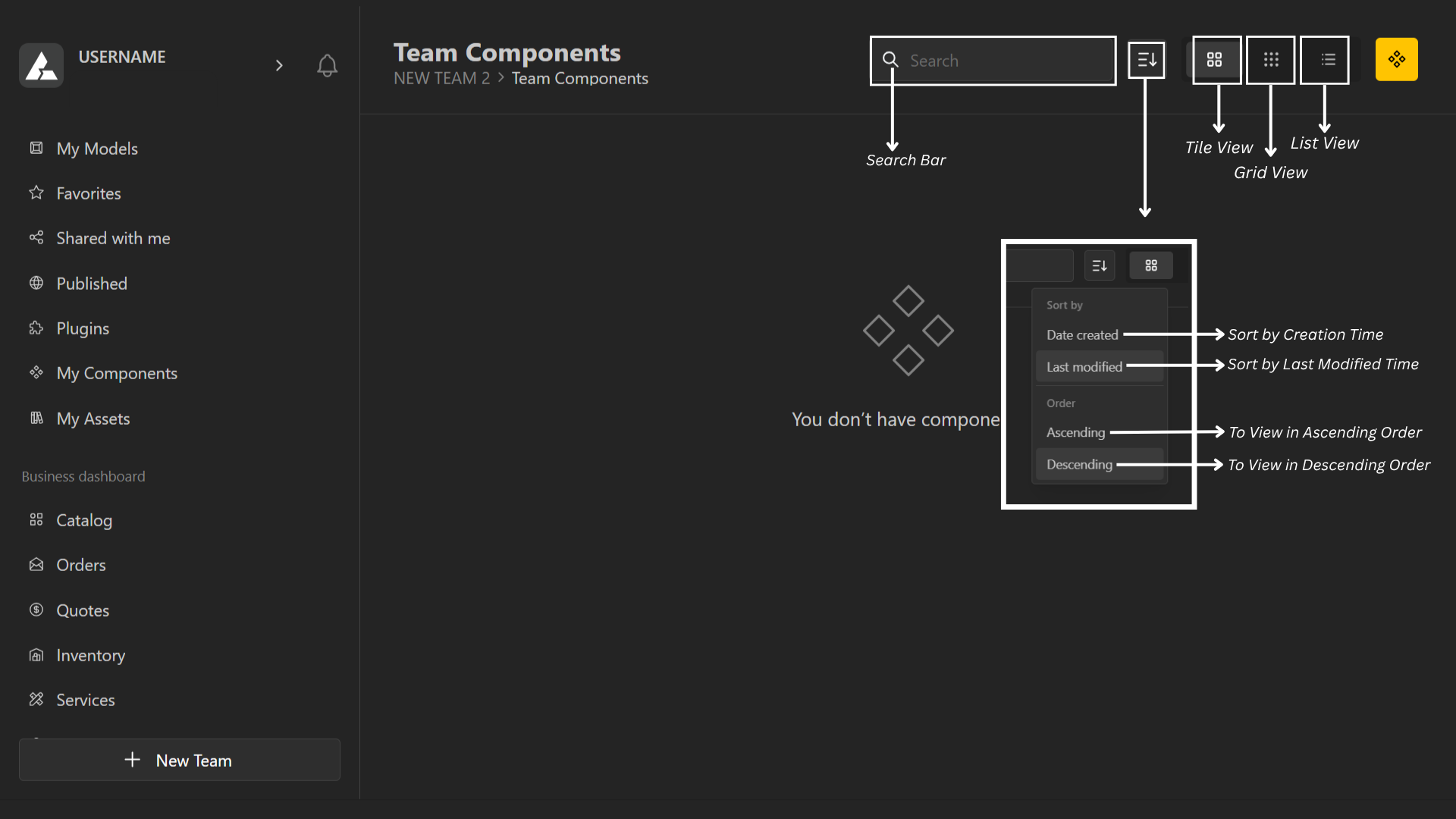
In Team Components, the top menu includes:
A search bar to find existing components.
A dropdown menu to select your preferred view type — you can sort files by creation time or modified time, and choose to view them in ascending or descending order.
Options to switch between Tile View, Grid View, and List View.
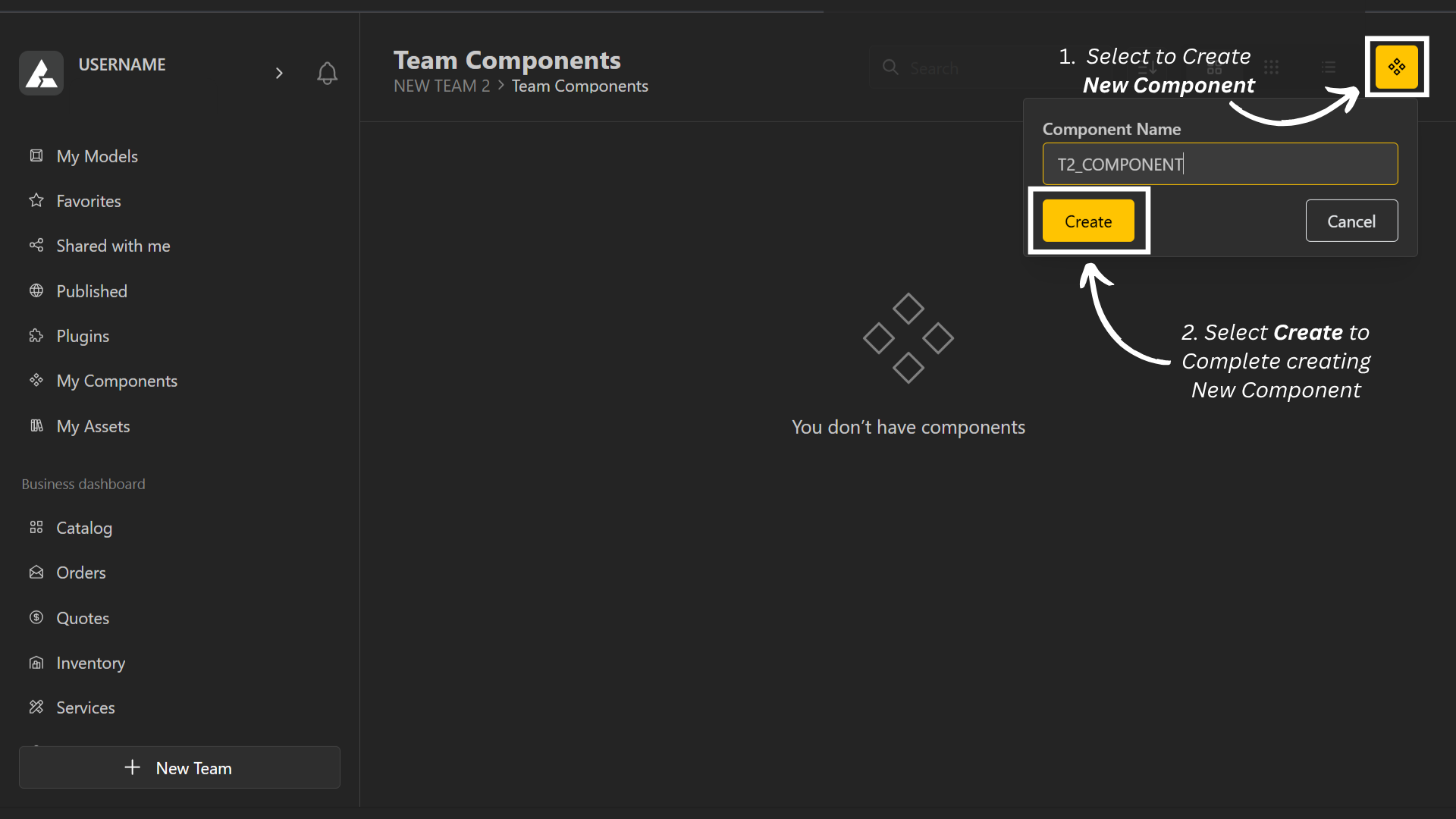
To create a new team component, click the yellow button in the top-right corner.
Enter the component name, then click Create to complete the process.
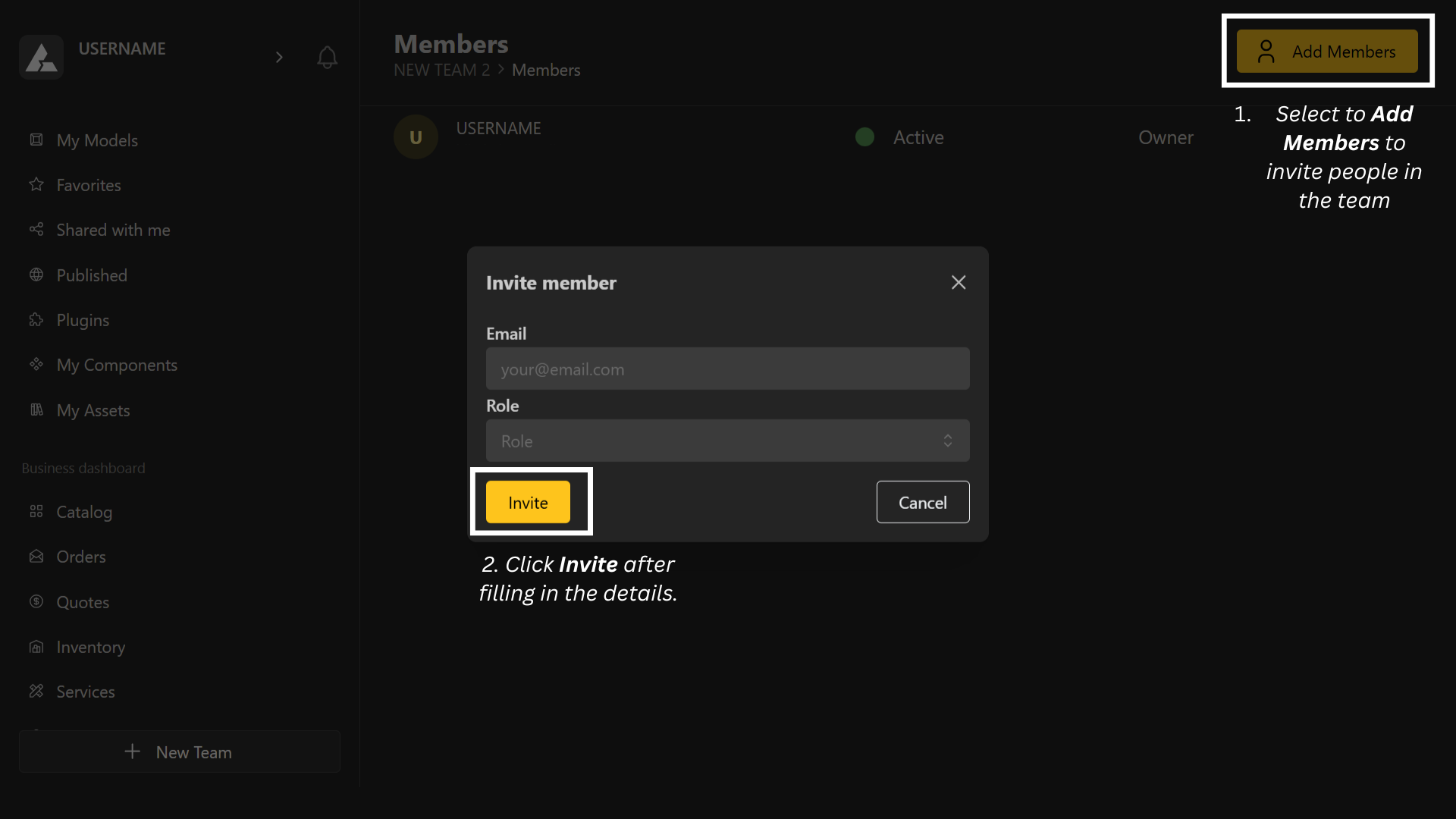
Click on Add Members to invite people to your team.
Enter their details (email address and role), then click Invite to send an invitation.
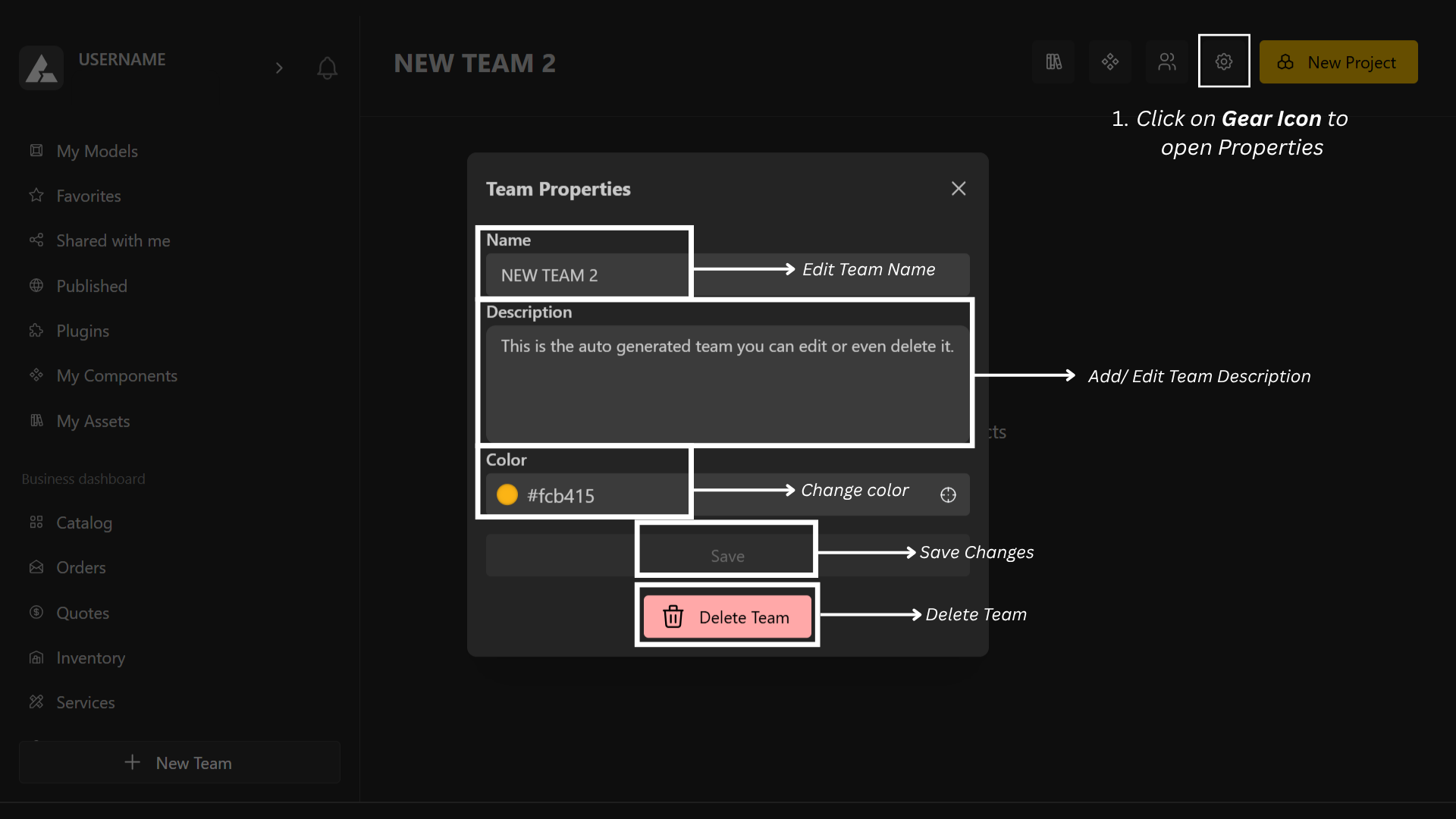
Click on the gear icon to open Team Properties.
From here, you can:
Edit the team name.
Add or edit the team description.
Change the team color.
Delete the team if needed.