
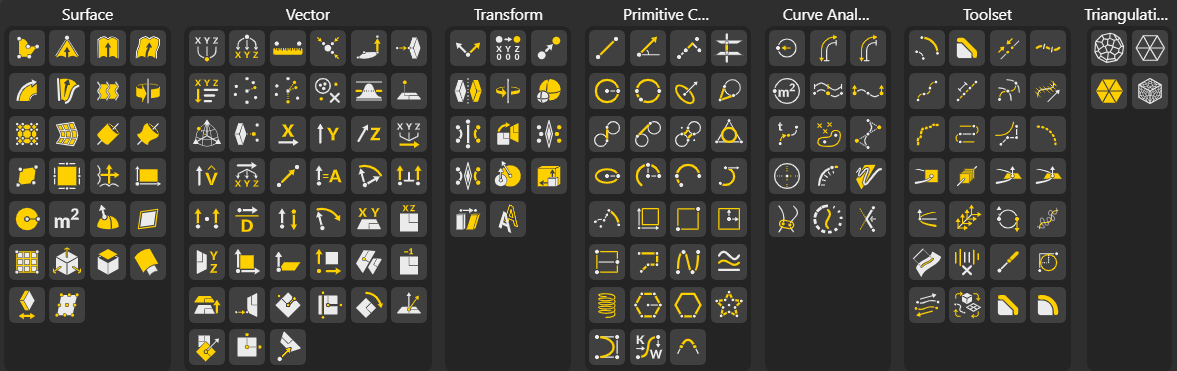
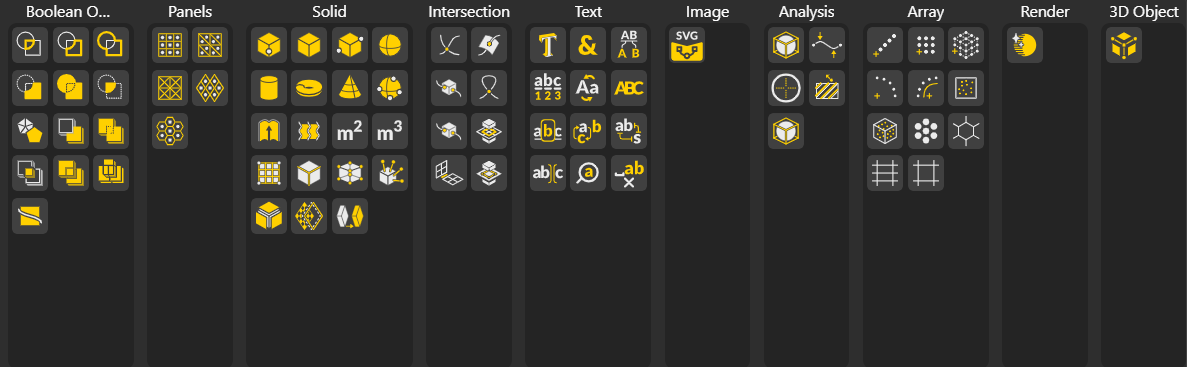
The Tools node serves as a hub for parametric design, giving you quick access to a wide collection of core and advanced nodes to create, manipulate, and control geometry and data in your graph.
Node Categories in BeeGraphy
BeeGraphy groups its nodes into intuitive categories, each focusing on a specific type of operation or geometry. These categories help you navigate the editor efficiently and find exactly what you need for modeling, analysis, or automation.
Surface: Tools for creating, modifying, and analyzing surfaces.
Vector: Nodes for generating and manipulating direction-based data.
Transform: Movements, rotations, scaling, and orientation adjustments for geometry.
Primitive Curve: Basic curve-creation tools such as lines, arcs, circles, and more.
Curve Analysis: Nodes for extracting information from curves (length, domain, division, intersection, etc.).
Toolset: Utility nodes that perform cleanup, grouping, evaluation, filtering, and data operations.
Triangulation: Tools to convert surfaces or meshes into triangle-based geometry.
Boolean Operations: Solid-based operations such as union, difference, and intersection.
Panels: Nodes that generate different paneling patterns like quad, triangle, diamond, and hexagonal panels.
Solid: Tools for creating, deconstructing, and analyzing solid geometry.
Interaction: Nodes enabling geometry to interact: intersections, projections, collisions, and more.
Text: String and text-processing tools for joining, splitting, formatting, and extracting characters.
Image: Tools for using images as inputs, sampling pixel data, or converting bitmap information into geometry.
Analysis: Nodes that extract information from any geometry: bounding boxes, centroids, contours, extremes, unions, etc.
Array: Pattern-generation tools: linear, rectangular, box, polar, curve arrays, grid patterns, and populating geometries.
Render: Caches input geometry for efficient reuse and optimized visualization. Instead of recalculating and triangulating geometry multiple times, this node stores it once and outputs lightweight mesh or curve representations for faster rendering and improved performance.
Use this node when working with repeated or complex geometry to reduce computation time and keep your workflow responsive.
3D Object Sampler: Extracts data from a 3D object for analysis and downstream operations. This node samples geometry to retrieve information such as point coordinates and color values, enabling you to convert visual 3D data into usable parameters within your workflow.