
Editing your model’s properties in BeeGraphy is simple and lets you control everything from basic details to advanced settings. Here’s how to access and modify them.
You can modify your model’s properties—such as renaming the model, adding a description, enabling comments, adjusting auto-zoom/live calculation, toggling the calculation pane, and debugging options.
Open the Properties of your Model
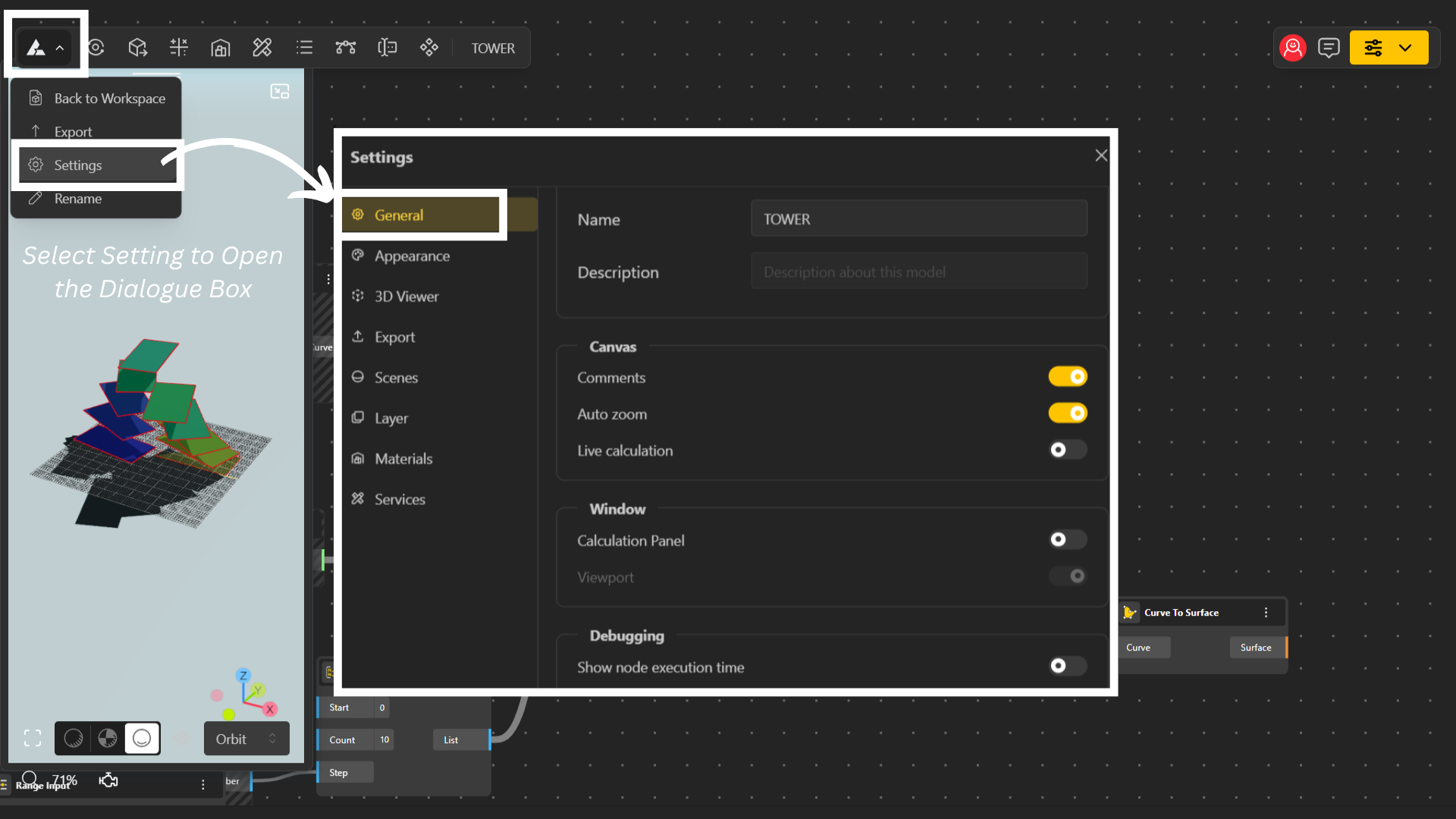
Log in to your workspace and open your desired model.
On the top-left corner, click the Beegraphy logo to open the dropdown menu.
Select Settings.
A dialog box will appear with the following fields:
When you open the Settings dialog, you can edit the following properties:
Model Details
Name – Rename your model.
Description – Add or update a short description of your model.
Canvas
Comments – Enable/disable comments from other people on your model.
Auto Zoom – Automatically adjusts the view to fit the nodes on the canvas. You can turn this on or off.
Live Calculation – When enabled, your model recalculates automatically as you make changes.
Windows
Calculation Panel – Enable/disable the calculation panel on the side of the interface.
Viewport – This stays enabled by default and shows your model’s visual output.
Debugging
Show Node Execution Time – Displays how long each node takes to execute, helping you identify slow or heavy operations. You can turn this feature on or off.