The Material Menu allow full parametric control in BeeGraphy, enabling you to create, replicate, modify, and analyze materials and structural elements efficiently. You can combine factories to generate multiple objects, and deconstruct nodes let you examine and reuse geometry attributes.
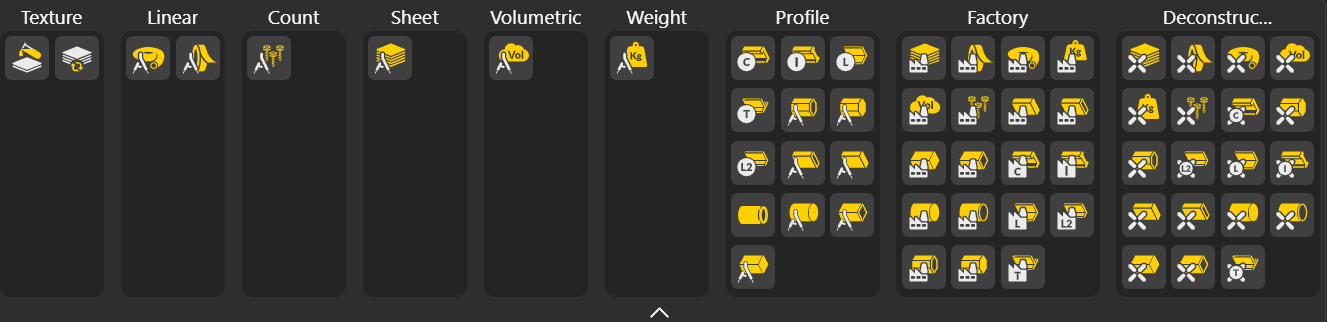
These nodes manage materials and surface appearances for your geometry.
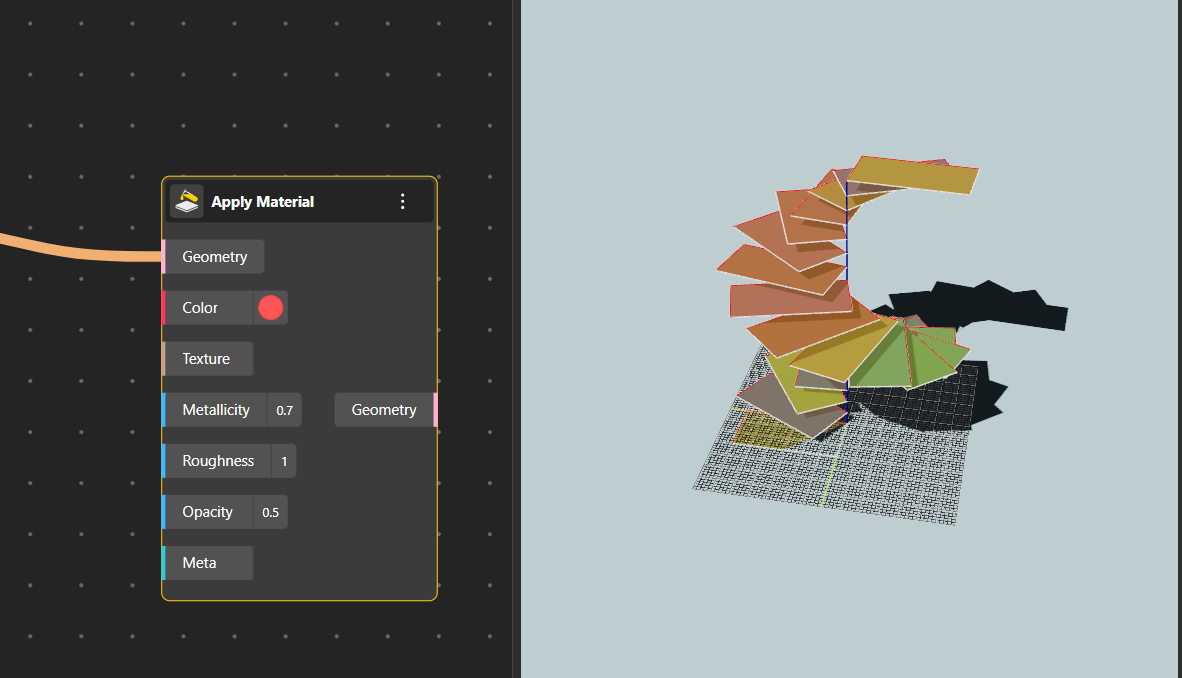
Apply Material
Assigns visual properties to geometry so it appears with color, texture, and physically-based rendering (PBR) attributes in the viewport or final output.
It does not change the geometry itself—only how it looks.
Geometry: The object (curve, surface, solid, mesh, etc.) that you want to apply the material to. The output will be the same geometry, but with the defined material appearance.
Color: Defines the base color of the material.
Texture: Allows you to plug in an image (texture map) to wrap over the geometry. Useful for patterns, images, surface details, or realistic materials like wood, concrete, or fabric.
Metallicity: Controls how metallic the surface appears.
0 → completely non-metal (plastic, clay, ceramic).
1 → fully metallic (steel, gold, chrome). Intermediate values give semi-metallic looks. Higher metallic values make reflections sharper and more mirror-like.
Roughness: Defines how smooth or matte the surface is.
0 → perfectly smooth and glossy (mirror-like).
1 → fully rough and matte (diffused light, no clear reflections). Adjust this to achieve polished, satin, or rough finishes.
Opacity: Controls transparency.
1 → fully opaque.
0 → completely transparent.
Values in between create glass-like or translucent effects. You can animate or vary opacity for visual behaviors like fading, layering, or ghosting.
Meta: Optional field used for advanced or custom metadata related to the material. This can include tags, annotations, or information that other systems or plugins might read. Not required for basic usage.
Material Assign: Controls how different materials are distributed across multiple objects or parts of a model.
Used for linear structural elements, beams, rods, and bar sections.
Linear Round: Creates a rod, pipe, or round bar profile with a specified diameter and length.
Linear Flat: Creates a flat bar profile with defined width, thickness, and length.
Manage numerical quantities or repetition of elements.
Count: Sets the number of items in a list, array, or pattern, which can drive replication or distribution in your model.
Represent flat material panels for modeling or fabrication
Sheet: Defines a 2D planar sheet with width, height, and optional thickness. Can be used for cutting, bending, or fabrication tasks.
Capture volume-based properties of objects or materials.
Volumetric: Computes or defines a volumetric object, storing information like mass, density, or size for structural or fabrication purposes.
Used to define material or part weight.
Weight: Assigns a mass or density property to a geometry, which can be used for calculations like total mass or load.
Provide standard structural shapes for beams, bars, and tubes.
C-Beam / I-Beam / L-Beam / T-Beam: Create commonly used structural beams with parametric control over dimensions.
Hex Tube / Hex Bar: Generates hexagonal hollow or solid profiles for mechanical or structural elements.
Rectangle Tube / Rectangle Bar: Creates rectangular hollow or solid profiles.
Round Tube / Round Bar: Creates circular hollow or solid profiles.
Square Tube / Square Bar: Generates square hollow or solid profiles.
L-Beam Different: A variant of L-beam with customizable unequal sides.
Automatically generate material or structural objects based on parameters.
Sheet Factory: Generates multiple sheet objects with specified dimensions and material properties.
Linear Flat Factory / Linear Round Factory: Creates multiple linear elements with flat or round profiles in bulk.
Weight Factory: Generates multiple objects with assigned weights.
Volumetric Factory: Generates multiple volumetric objects with parametric sizes.
Count Factory: Creates a series of items based on count values.
Rectangle Bar / Rectangle Tube Factory: Creates rectangular bars or tubes in bulk.
Square Bar / Square Tube Factory: Creates square bars or tubes in bulk.
C-Beam / I-Beam Factory: Generates multiple C-beam or I-beam elements.
Round Bar / Round Tube Factory: Creates multiple round bars or tubes.
L-Beam Equal Factory: Generates multiple L-beams with equal sides.
Beam Diff Factory: Creates beams with unequal sides or customized dimensions.
Hex Tube / Hex Bar Factory: Generates multiple hexagonal tubes or bars.
T-Beam Factory: Creates multiple T-beam elements.
Break objects into their defining parameters for analysis, editing, or reuse.
Deconstruct Material / Sheet / Linear Flat / Linear Round: Extract properties like width, thickness, height, or diameter from the material or linear profile.
Deconstruct Volumetric / Weight / Count: Retrieve volume, weight, or count properties of objects for calculations or reporting.
Deconstruct C-Beam / I-Beam / L-Beam / L-Beam Different / T-Beam: Break structural profiles into dimensional parameters (height, width, flange thickness, web thickness).
Deconstruct Hex Bar / Hex Tube / Rectangle Bar / Rectangle Tube / Round Bar / Round Tube / Square Bar / Square Tube: Extract the key dimensions of these profiles, such as side length, radius, or wall thickness.