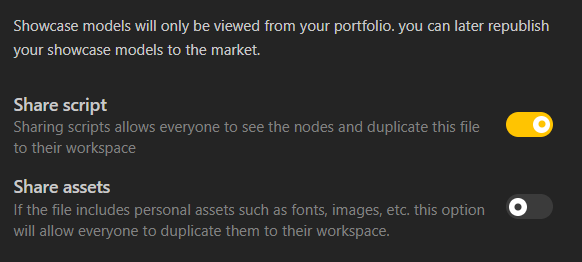
By default, BeeGraphy does not share your source file when you publish a model. Others can view your work, but they cannot access or copy the original geometry file unless you explicitly allow it.
If you want to manually enable this option, follow these steps:
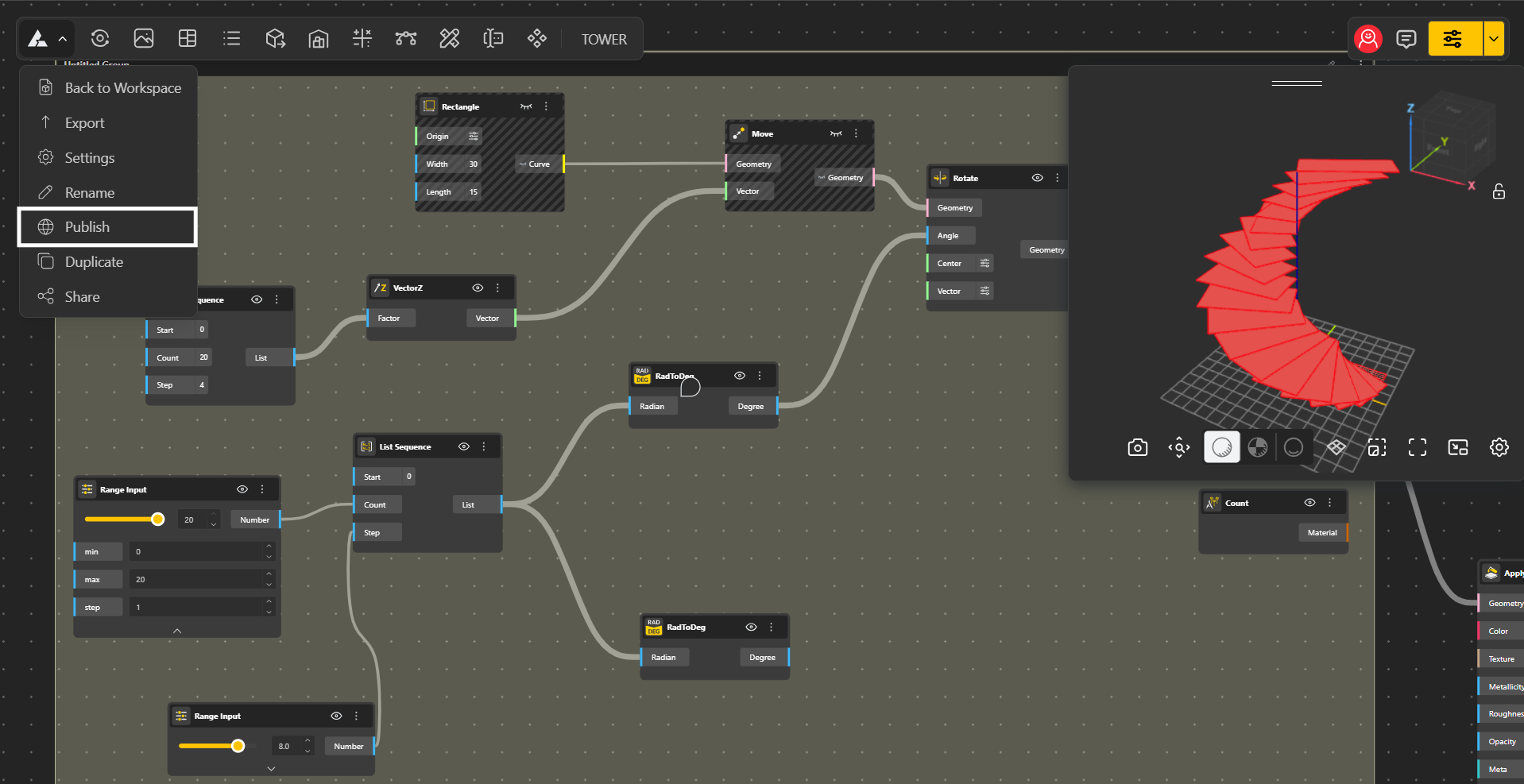
Go to your model.
Open the main menu (dropdown).
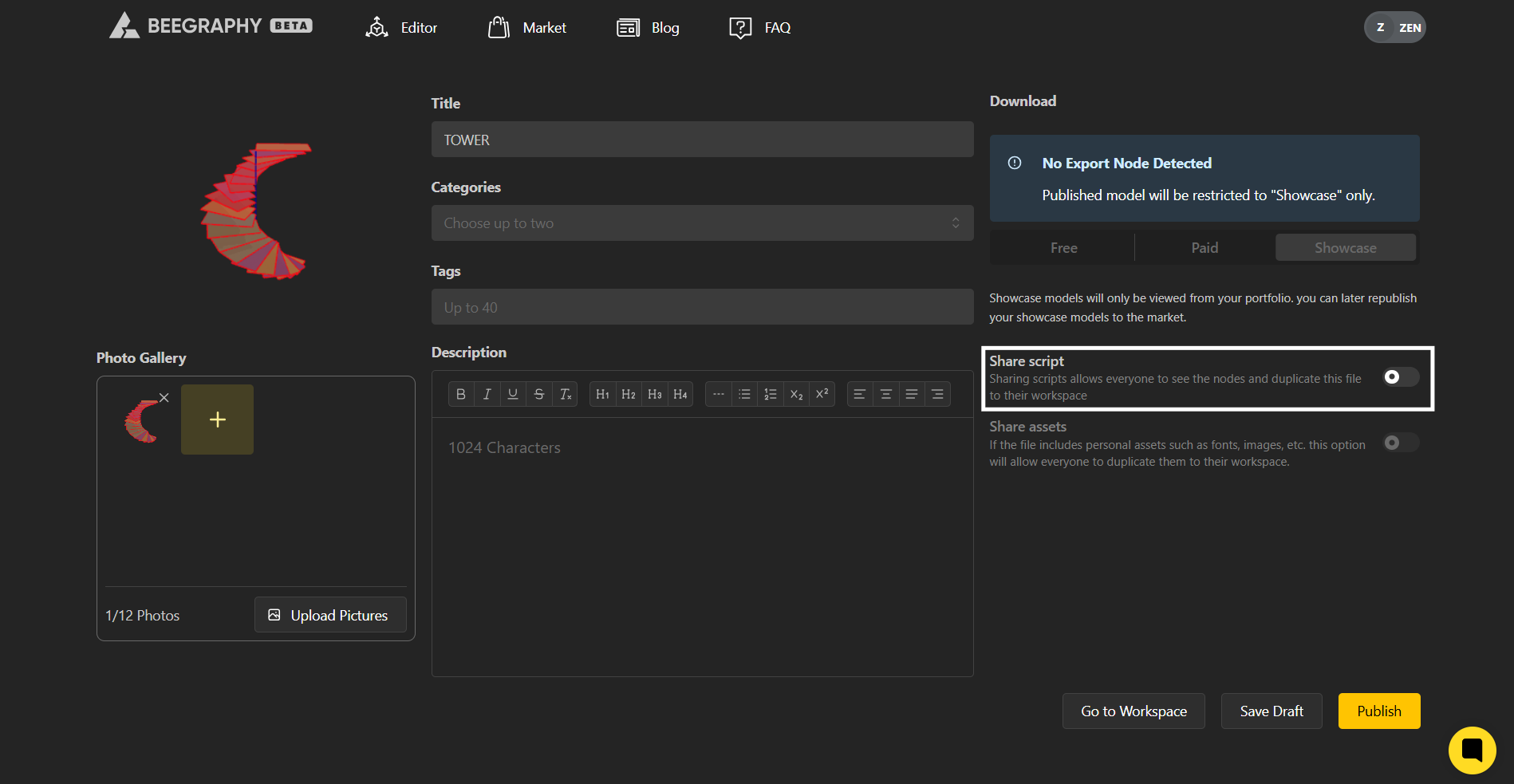
Click Publish → a new window will open.
Share Script Option (What It Does)
The Share Script option allows other users to create a duplicate copy of your geometry file.
This means they can open the file, inspect the node setup, and work with the same parametric structure you created.
By default, this option is turned OFF, so your work stays protected.
You can choose to turn Share Script ON if you want to allow duplication.
Sharing Assets (Optional Control)
When enabling Share Script, you can also decide whether to share assets (such as imported files, images, or external resources).
If asset sharing is turned ON, users receive everything needed to fully recreate the model.
If turned OFF, only the script structure is shared, without attached assets.
This gives you full control over how much of your work is accessible to others.