Conditional Group helps structure complex parametric definitions in BeeGraphy by allowing geometry and parameters to be organized into clear, selectable sections. When a Conditional Group is used, only the parameters related to the currently active condition are shown and evaluated in the Demo and Configurator, while all others remain hidden.
For example, in an architectural model of a house, each room can be assigned to a condition. Selecting a specific room activates only that section of the geometry and exposes only its related parameters. This makes it easier to edit without visual or interface clutter. This approach improves clarity, simplifies interaction, and allows users to focus on one part of the model at a time.
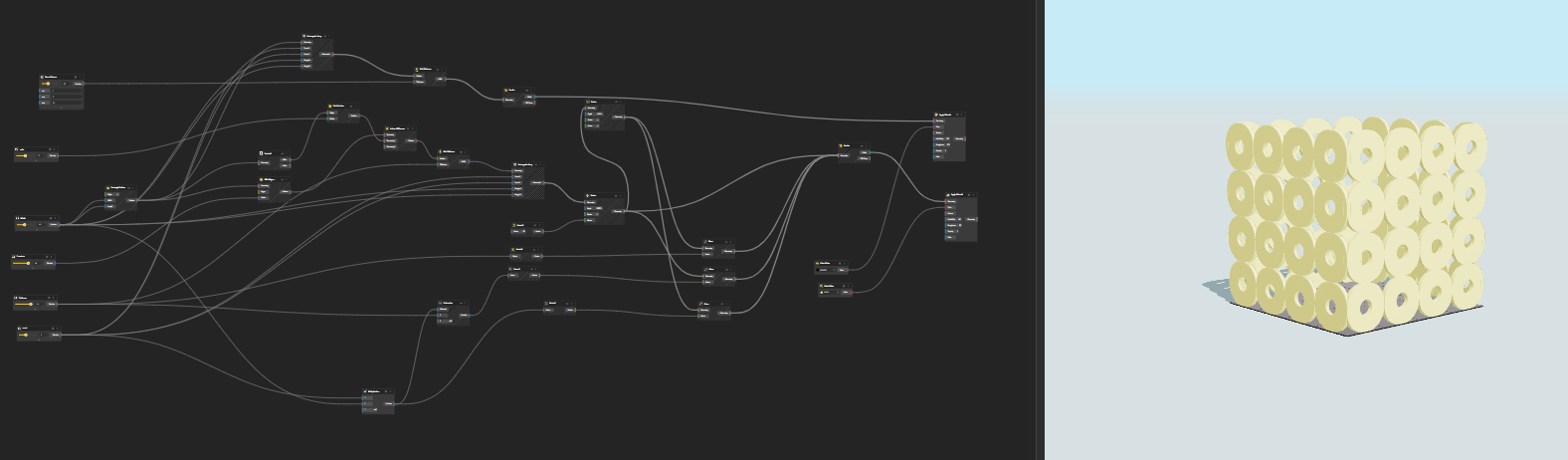
This workflow explains how to switch between multiple design conditions (Condition 1, 2, 3, etc.). The idea is simple: you choose a condition → BeeGraphy activates only the matching geometry stream.
Start by opening your model in the BeeGraphy Editor.
Select all components that belong to one logical condition
Create a Group from these components.
Repeat this for every condition (Condition 1, Condition 2, Condition 3).
Think of each group as a self-contained option that should appear only when its condition is active.
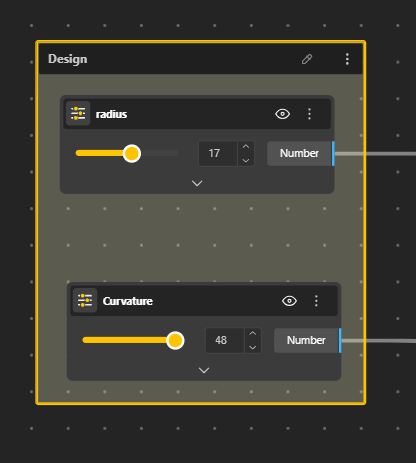
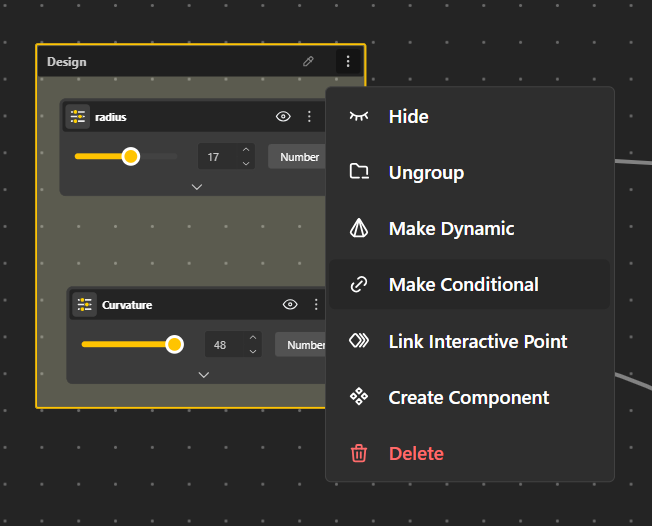
Now we create the control that lets users choose between conditions.
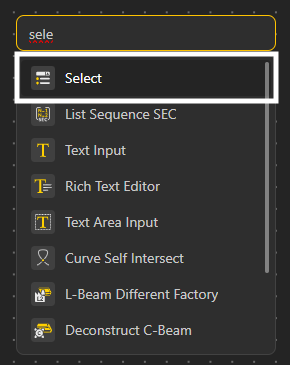
Add a Select Node.
In the node:
Add numeric values (1,2,3,…).
Set the Label of each value to the condition name (for example: Sides, Design, or Base)
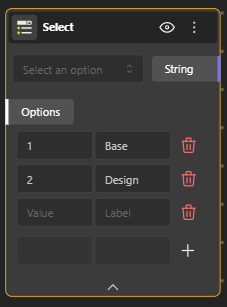
Add a Stream Filter node.
Connect the geometry streams (from grouped conditions) to the Stream Filter.
Connect the Stream Filter output into a Gate node.
At this stage, all conditions still exist, but they are passing through a controlled pipeline.
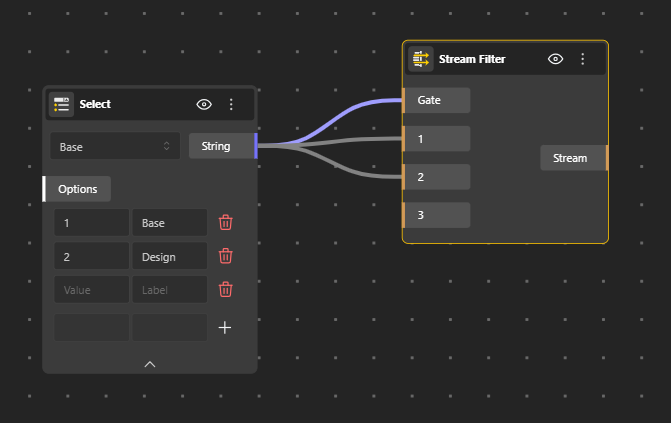
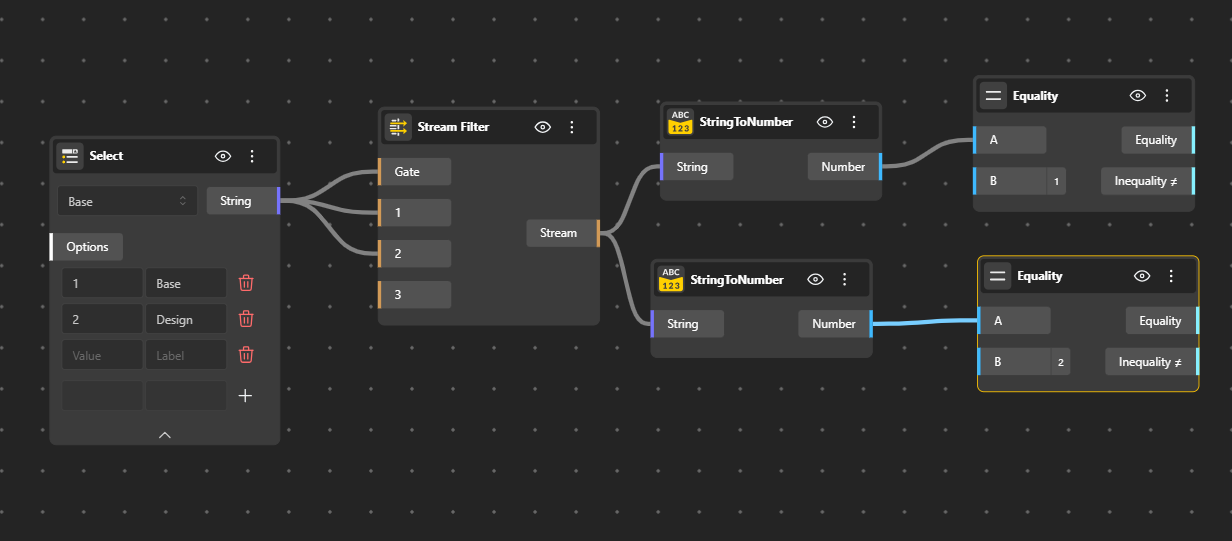
Because the selected condition is stored as text:
Add a StringtoNumber node.
Connect the output of the Select Node to it.
This assigns a numeric value (1, 2, or 3) to the selected condition, which allows numeric comparison later.
Now we check which condition is currently active.
Add an Equality node for each condition.
Connect the output of StringtoNumber to the first input (A) of all Equality nodes.
For the second input (B)
Condition 1 → set value to 1
Condition 2 → set value to 2
Condition 3 → set value to 3
The output is a True / False signal.
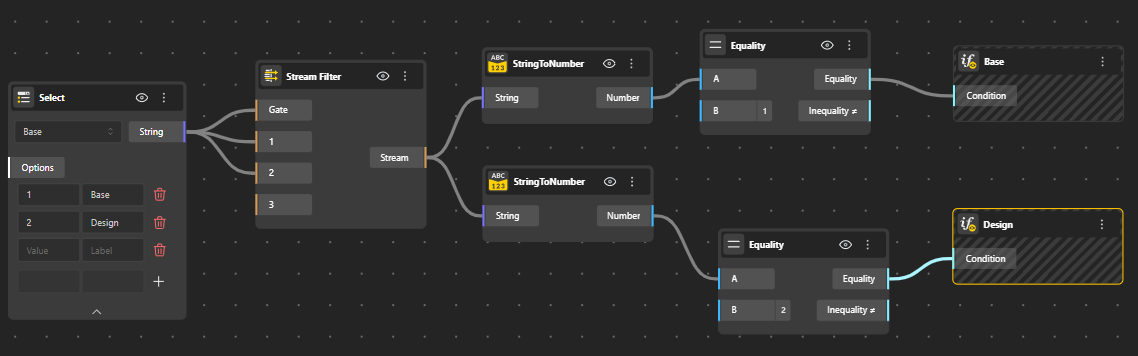
Add an If Condition node for each condition.
Rename each node clearly (for example: Sides, Design, or Base)) for better readibility.
Connect the output of the corresponding Equality node to it.
At this point, all conditions remain in the model, but how they pass through the system is now regulated.
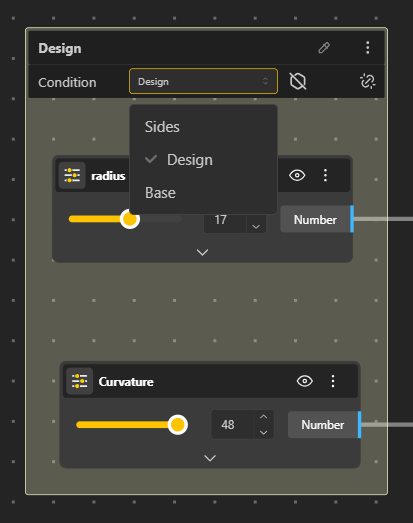
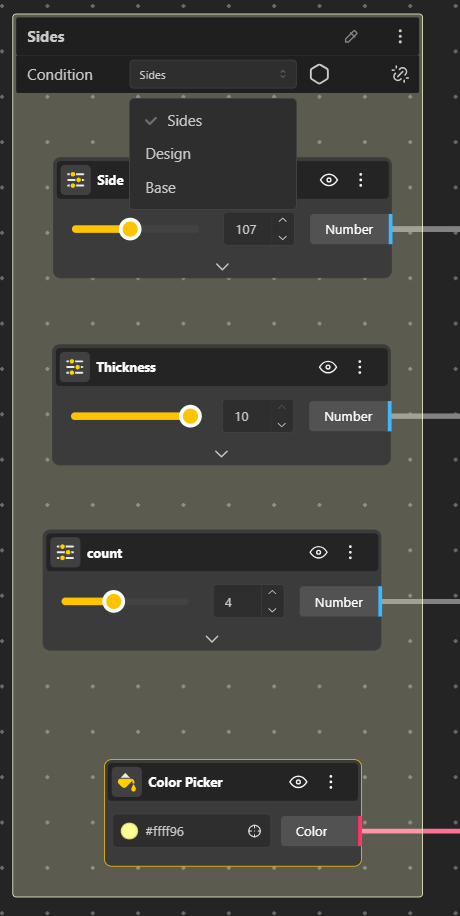
Once the groups are created in Step 1, the next step is to control which parameters appear for each condition.
Open the group you created earlier.
In the Condition dropdown, select the corresponding condition (for example: Sides, Design, or Base).
Place only those parameters inside the group that you want to be visible and editable for that selected condition.
Each group now acts as a conditional container:
When a condition is active, only the parameters assigned to that group are shown.
When the condition is inactive, its parameters remain hidden.
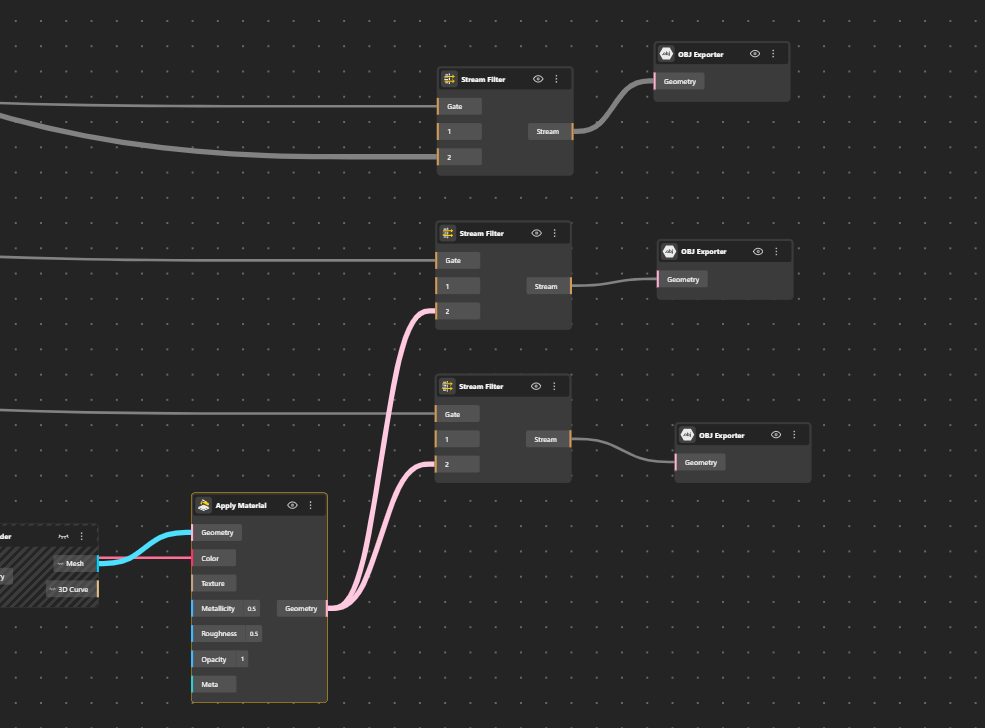
Add another Stream Filter node. This Stream Filter is used to match geometry with its condition.
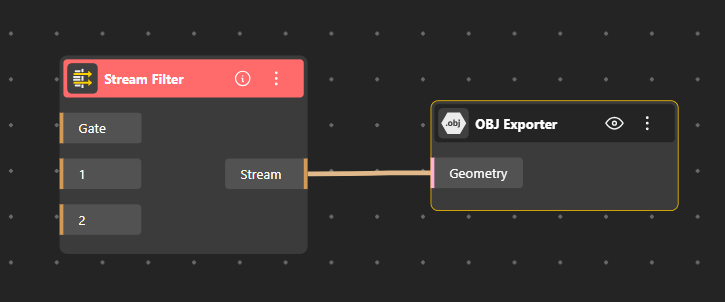
For each condition:
Connect each Gate input port with the corresponding Equality.
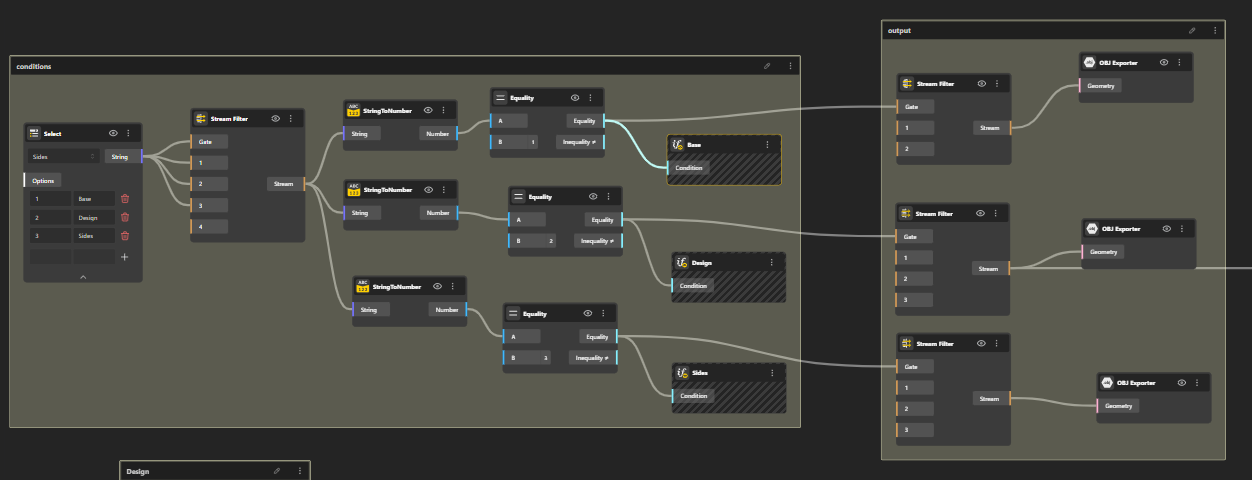
Connect the corresponding Equality output to the second input of that Stream Filter.
What happens here?
Only the geometry whose condition evaluates to True is allowed to pass. All other geometry streams are blocked.
Now switch to Demo Mode.
Use the Select Node to choose a condition.
Instantly, only the geometry linked to that condition appears.
Materials, outputs, and parameters update live.
This creates a single model with multiple behaviors, controlled by one clean parameter.
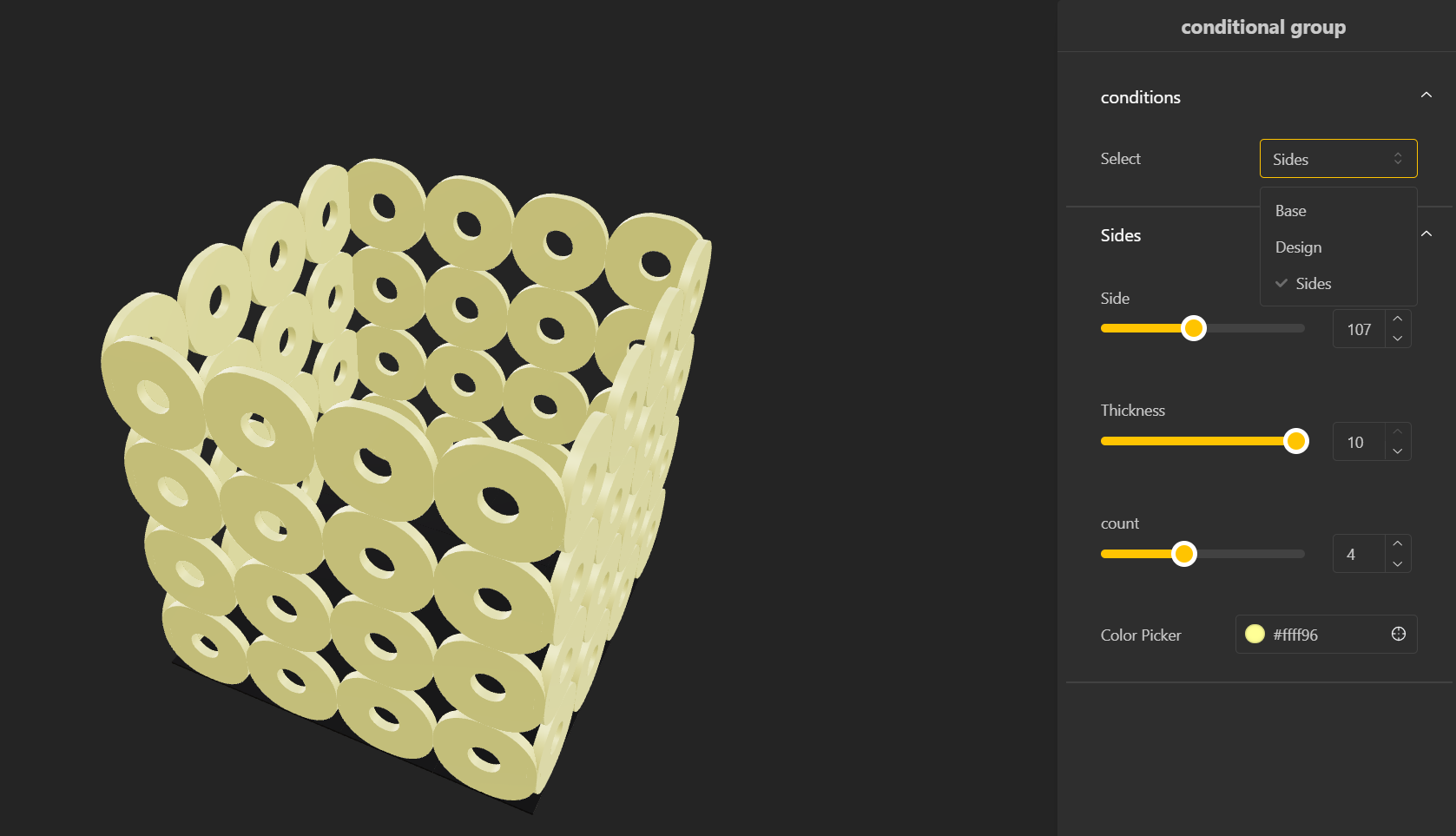
This model is provided for interaction. You can duplicate the script and experiment independently to better understand the setup. Click here.
Dynamic Group
Learn how to generate multiple geometry variations from the same parameters and display them together.
To try Conditional & Dynamic Grouping together: Click Here.