The workspace in BeeGraphy is divided into distinct sections for smooth and efficient modeling. On the upper left, you’ll find the main tool panel. On the right, tools related to the user sharing. The lower left corner contains controls related to the Editor’s functions and the scale adjustment button.
The 3D Output Window displays the result of your model based on the nodes you’ve used in the workspace. You can move it to either side of the screen and scale it to any size you prefer. You can also pop it out into a separate floating window by clicking the pop-out icon in the top-right corner. When popped out, it stays always on top, making it easier to view your model while you work.
The central workspace is where the core modeling happens here, you’ll build and connect nodes to create dynamic 3D parametric designs.
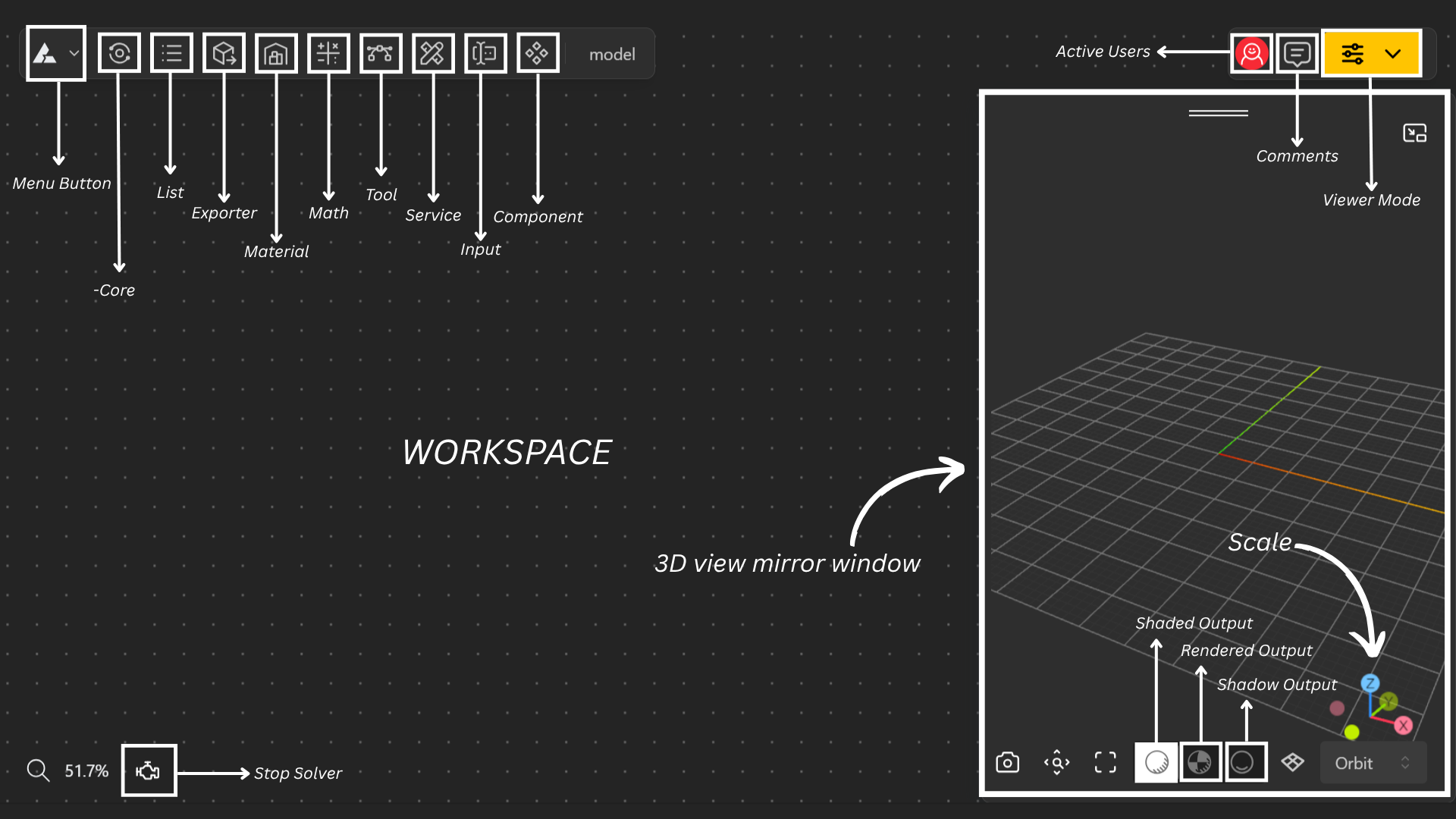
The workspace also provides several management tools to help organize, navigate, and control your modeling environment efficiently.
The Main Menu provides quick access to essential workspace actions and tools. It allows you to navigate between views, manage your model, export files, and control sharing or publishing all from one place.
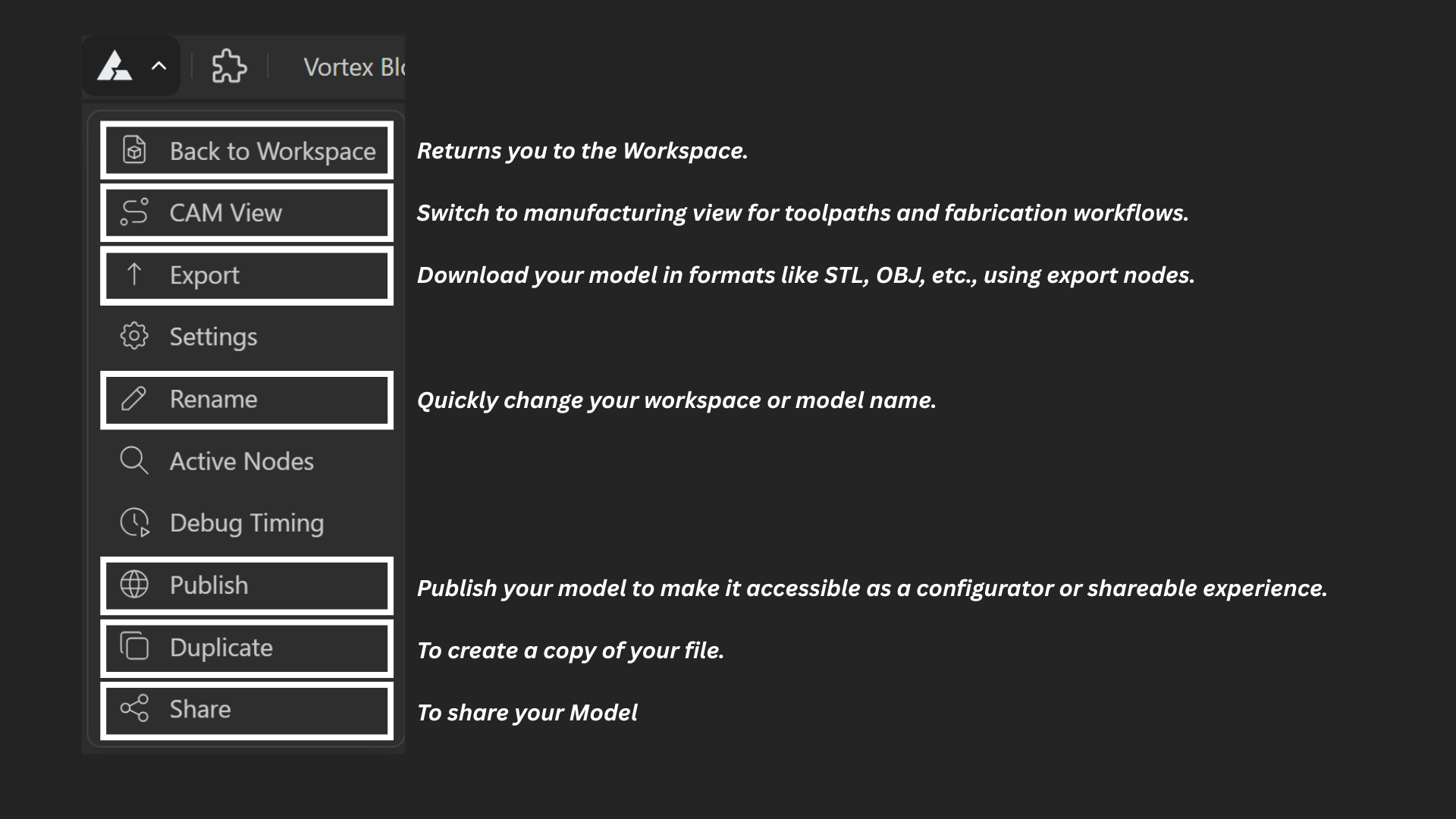
How do I Export my model?
Learn how to export your model to your system or Autodesk Fusion and save it in your desired file format for use outside the Editor.
Editor Settings
Workspace Editor Settings
Active Nodes
Learn how to navigate through all the nodes of your model, making it easier to understand and manage your workspace.
Debug Timing
The Debug Timing feature helps you understand how long each node takes to execute
How do I publish a model ?
Guiding you through publishing and unpublishing a model, detailing all the settings required during the publishing process. It also explains where to view your published models and how to unpublish or delete them when needed.
What are Shared Models & how do they work?
Learn about sharing Models, how to share them, and the modes others can use to open a shared model.
The central toolkit to debug, layers, scripting, display data, and conditional tools for controlling and troubleshooting your model.

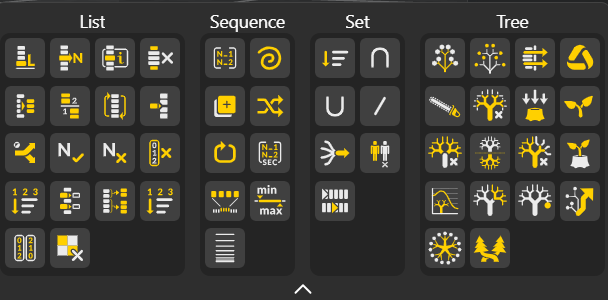
Tools for creating and managing collections of items, including sequences, sets, and decision-tree operations. It allows you to organize, sort, and manipulate data efficiently.
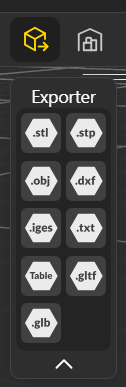
Export your models and assets to common file formats for use outside BeeGraphy.
Numeric and vector operations, transforms, and utility functions (trigonometry, interpolation, etc.) used to drive parametric logic.
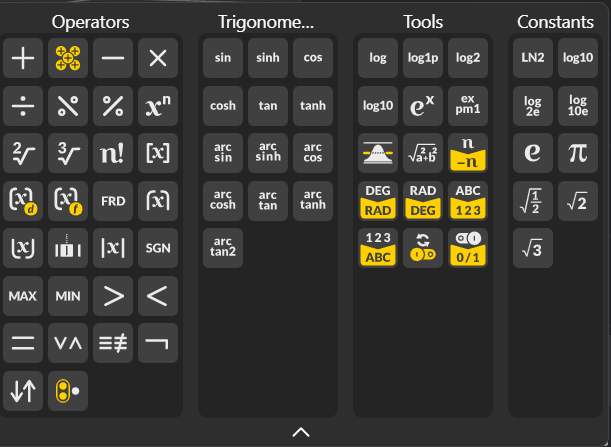
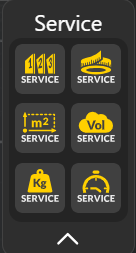
Define surface and object properties, including textures, linear or sheet materials, volumetric properties, weight profiles. Use Deconstruct to break your model into its components along various dimensions or selective planes, allowing you to analyze, manipulate, or extract specific parts of the geometry.

Provides access to all available nodes for building and modifying your model.

Provides tools for rendering, mapping, and scaling your model to enhance how it is displayed and interpreted.
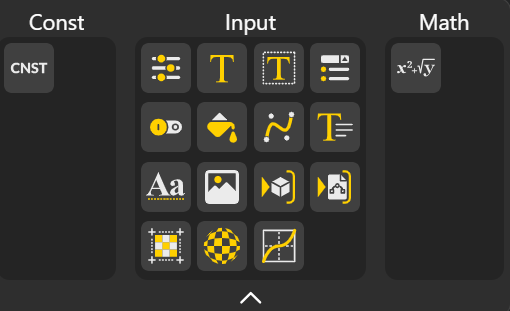
Allows you to provide values such as text, numbers, colors, Boolean operations and much more.
Displays a list of all available components that you can use or reuse in your models. Learn More.
Lets you pause or control automatic calculations, giving you the ability to inspect or adjust your model before it updates. Learn More.

Shows Active Users working in the Model in Real Time.
This feature allows you to add comments while working in the Model, creating a collaborative, interactive space for your team / partners.
Get to know More about Interactive Spaces in BeeGraphy.
The viewer Mode offers to Mode - Configurator Mode and Demo Mode. Learn More About it.
The BeeGraphy toolbar can now be customized to match your workflow. You can organize your workspace by pinning or unpinning tool packages, allowing you to keep frequently used tools easily accessible while reducing clutter in your interface.